Cellpose is a deep-learning model purpose-built for biological cell and nucleus segmentation. Rather than predicting a simple foreground/background mask, it learns to predict gradient flows - vectors that point from every pixel toward the center of the nearest cell. A simple post-processing step then follows those gradients to group pixels into individual cell instances, making it remarkably robust to cells of different sizes, shapes, and imaging conditions.
Cellpose is pre-trained on a large, diverse collection of microscopy images and generalises well out of the box. When your images differ significantly from the training data (unusual stains, atypical morphology, low magnification), fine-tuning on a small set of your own annotated images - which Mycol supports directly - can dramatically improve results.
Versions used in Mycol
- Cellpose 2 introduced a human-in-the-loop training workflow, allowing users to correct segmentation errors and immediately improve the model with very few additional annotations. Read the Cellpose 2 paper (Nature Methods, 2022) →
- Cellpose 3 added image restoration capabilities (denoising, deblurring, and upsampling) so that segmentation quality is maintained even on noisy or low-resolution data. Read the Cellpose 3 paper (Nature Methods, 2024) →
Official website and documentation: cellpose.org
DenseNet (Densely Connected Convolutional Network) is a convolutional neural network architecture designed for image classification. Its key idea is that every layer is directly connected to every other layer within a dense block: the input to each layer is the concatenation of the feature maps from all preceding layers, not just the previous one.
This dense connectivity has two practical benefits:
- Feature reuse - early low-level features (edges, textures) remain accessible to later layers without having to be re-learned, so the network extracts richer representations with fewer parameters.
- Gradient flow - during training, gradients can travel directly from the loss back to the earliest layers, which prevents the “vanishing gradient” problem and makes training more stable, especially on small datasets.
In Mycol, DenseNet is applied at the individual cell level: each segmented cell patch is classified into one of your user-defined classes. The model is either used with a pre-trained checkpoint you upload, or fine-tuned from scratch on your own annotated cell patches.
Original paper: Huang et al., Densely Connected Convolutional Networks, CVPR 2017. Read the paper →
When Mycol measures a cell - its area, perimeter, diameter, and so on - the raw number is always in pixels, because that is what the image is made of. A pixel has no inherent physical size; it depends entirely on your microscope’s magnification and camera settings.
The pixel-to-distance (px → µm) conversion lets you express measurements in real-world units by supplying a single number: how many micrometres one pixel represents in your images (the pixel size or image scale, often found in your microscope software or image metadata).
For example:
- If 1 pixel = 0.5 µm and a cell has an area of 400 px², its physical area is 400 × 0.5² = 100 µm².
- Linear measurements (perimeter, diameter) scale by the factor directly: 40 px × 0.5 = 20 µm.
If no conversion factor is provided, Mycol simply reports all measurements in pixels. You can still compare cells within the same experiment, but cross-experiment or publication comparisons require consistent physical units.
How to find your pixel size: check the metadata embedded in the image file (e.g. the TIFF tags), your microscope acquisition software, or ask your facility’s imaging staff for the calibration value at the magnification you used.
SAM2 (Segment Anything Model 2) is a general-purpose segmentation model developed by Meta AI. Unlike Cellpose, which was trained specifically on microscopy images, SAM2 was trained on an enormous and diverse collection of natural images and videos. Its strength is promptable segmentation: given a point, bounding box, or rough outline supplied by the user, SAM2 predicts a precise mask for the object at that location.
In Mycol, SAM2 is used as an interactive segmentation tool. Instead of running fully automatically across the whole image, you highlight a cell with a box and SAM2 will generate a high-quality mask for that cell. This makes it especially useful for:
- Segmenting unusual cell types or objects where Cellpose may struggle.
- Quickly annotating small numbers of cells for a training set without running a full automatic pass.
Because SAM2 relies on your prompt rather than learning from your specific image type, it does not need to be fine-tuned - it works out of the box. However, for fully automatic, hands-off segmentation of large image sets, a trained Cellpose model will generally be faster and more consistent.
Learn more about SAM2: ai.meta.com/sam2
Images (required)
The microscopy or sample images you want to analyse. Standard formats such as TIFF, PNG, and JPEG are supported. Every other file type is optional and supplementary - images are the only thing you must upload to start working. Without an associated image, a mask will not be recognised when uploaded.
Masks (optional)
Segmentation masks that outline the cells or regions of interest in your images. Each mask is a labelled image where every cell is represented by a unique integer ID, and background pixels are zero. Uploading existing masks lets you skip the automatic segmentation step and jump straight to classification or analysis, or to continue refining masks you created in a previous session. You can upload the Cellpose .npy format or a tiff where each cell is a different integer value.
Hyperparameter CSV (optional)
A comma-separated file that specifies the seared hyperparameter space during Cellpose training. The hyperparamters can significantly affect model performanace so setting Cellpose hyperparameters in the Annotation page can improve your results. By uploading the searched hyperparameter csv, you can automatically set the hyperparameters to the optimal values each session.
Saved Session (optional)
A zip archive produced by the Session Restore download option. Uploading it reloads a previous Mycol session in full: all images, masks, class labels, trained models, and settings are restored exactly as they were when the session was saved. This is the recommended way to pause and resume long annotation or training projects, or to share a complete working state with a collaborator.
You do not need a machine learning background to train useful models in Mycol. The guidelines below cover the most impactful things you can do to get good results.
Start with the pre-trained model
Before training anything, run the default Cellpose or DenseNet model on a few images. Often the out-of-the-box result is already good enough, or needs only minor corrections. Training is worth the effort only when automatic results are consistently poor.
Data quality beats data quantity
A small set of carefully checked annotations is almost always better than a large set of sloppy ones. For Cellpose, 10–30 well-corrected images are usually enough to see a meaningful improvement. For DenseNet classification, aim for at least 50–100 annotated cells per class, and ensure the classes are balanced (similar numbers per class).
Cover the diversity in your data
Training images should represent the full range of conditions you will encounter: different brightness levels, focal planes, cell densities, and edge cases. A model trained only on the “easy” images will struggle with the harder ones.
Watch the loss curves
After training, Mycol shows a plot of how the model’s error (the “loss”) decreased over each training epoch. A healthy training run shows both the training loss and the validation loss falling steadily and then levelling off close together. If the validation loss starts rising while the training loss keeps falling, the model is overfitting - it is memorising your training data rather than learning general patterns. In that case, stop training earlier (fewer epochs) or add more diverse training images.
Iterate in small steps
Train a model, test it on new images, correct the errors, add those corrected images back to your training set, and re-train. This cycle of annotate → train → correct → repeat is the most efficient way to improve a model without needing thousands of images up front.
DenseNet tip: DenseNet classifies individual cell patches, so the quality of your segmentation masks directly affects classification accuracy. Fix obvious segmentation errors (merged cells, background fragments) before training a classifier.
For every segmented cell, Mycol computes a set of shape descriptors from the mask region.
All values are reported in pixels unless a pixel-to-distance conversion factor is supplied.
Descriptors are computed using
skimage.measure.regionprops
from the scikit-image library.
Notation used below:
- A - area (number of pixels inside the cell mask)
- P - perimeter (length of the cell boundary)
- a, b - semi-major and semi-minor axes of the best-fit ellipse
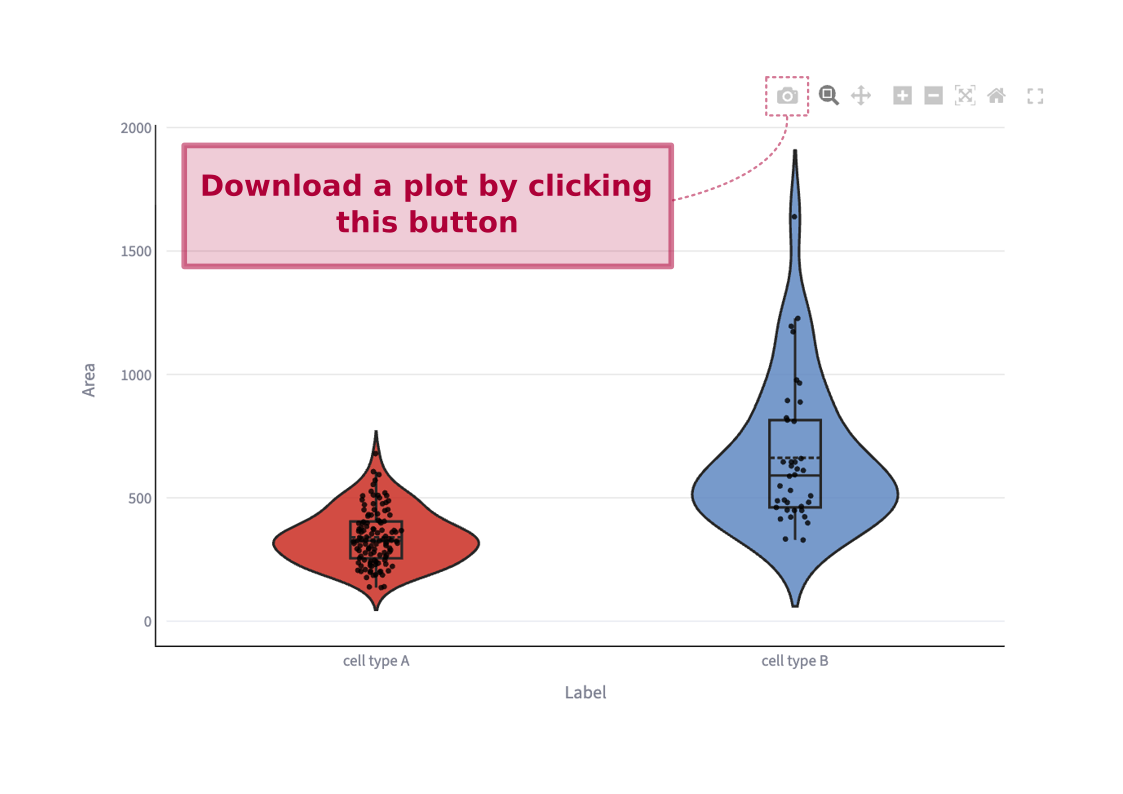
What it describes: The size of the cell in pixels.
What it describes: The length of the cell’s boundary.
What it describes: The longest (major) and shortest (minor) diameters of the best-fit ellipse. Larger major-axis values relative to cell size indicate a more elongated cell.
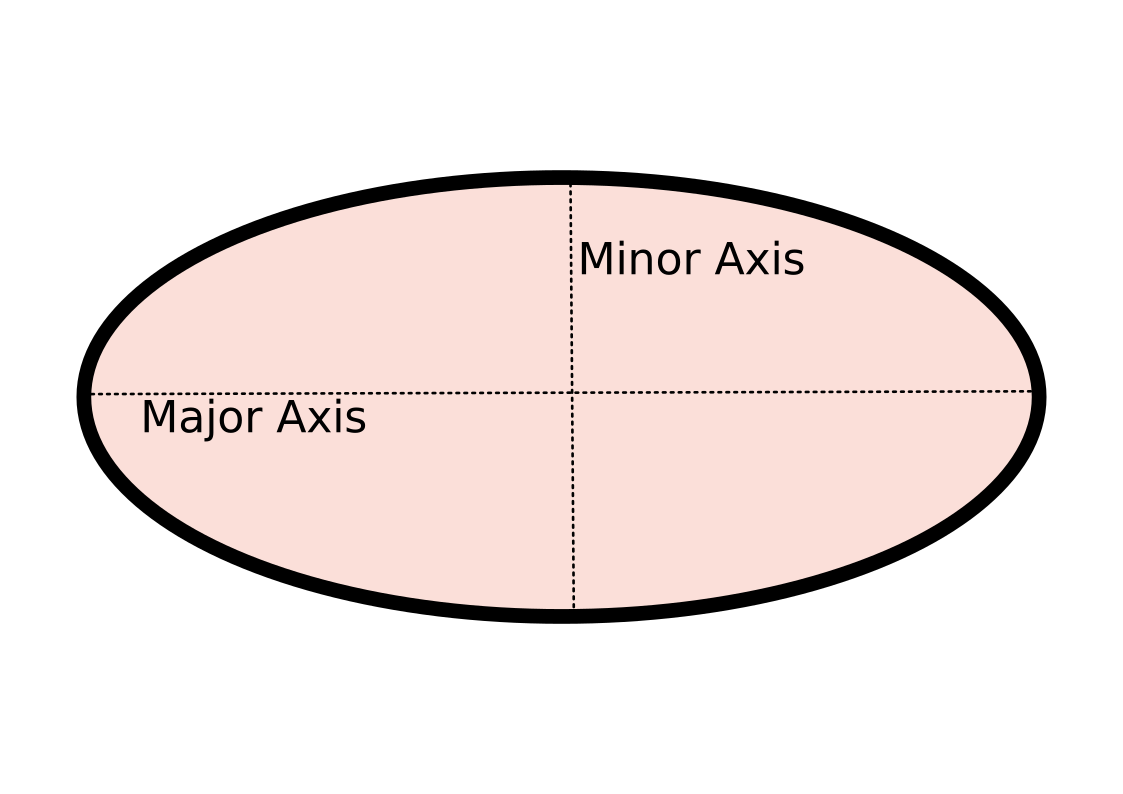
The major axis is the longest diameter of the best-fit ellipse; the minor axis is the shortest diameter perpendicular to it.
What it describes: Three related measures of how circle-like and compact a shape is. Circularity and roundness are close to 1 for near-circular cells and decrease with elongation or irregular boundaries. Compactness is the inverse of circularity and increases with boundary irregularity.
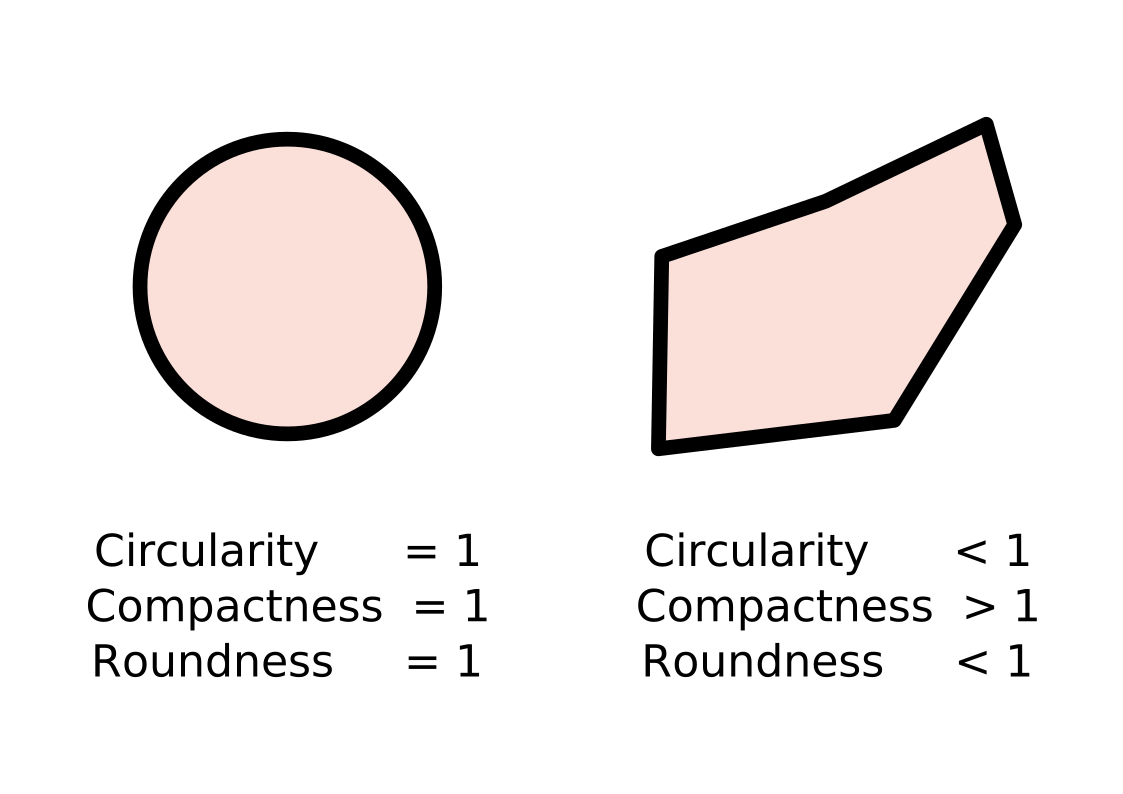
For the same area A, shapes with longer perimeters P have lower circularity and roundness, and higher compactness.
What it describes: Three related measures of how stretched the best-fit ellipse is. Aspect ratio compares the major and minor axes (≥ 1). Elongation normalizes the difference between axes into the range 0–1. Eccentricity measures how far the ellipse deviates from a circle, also ranging from 0 to 1.
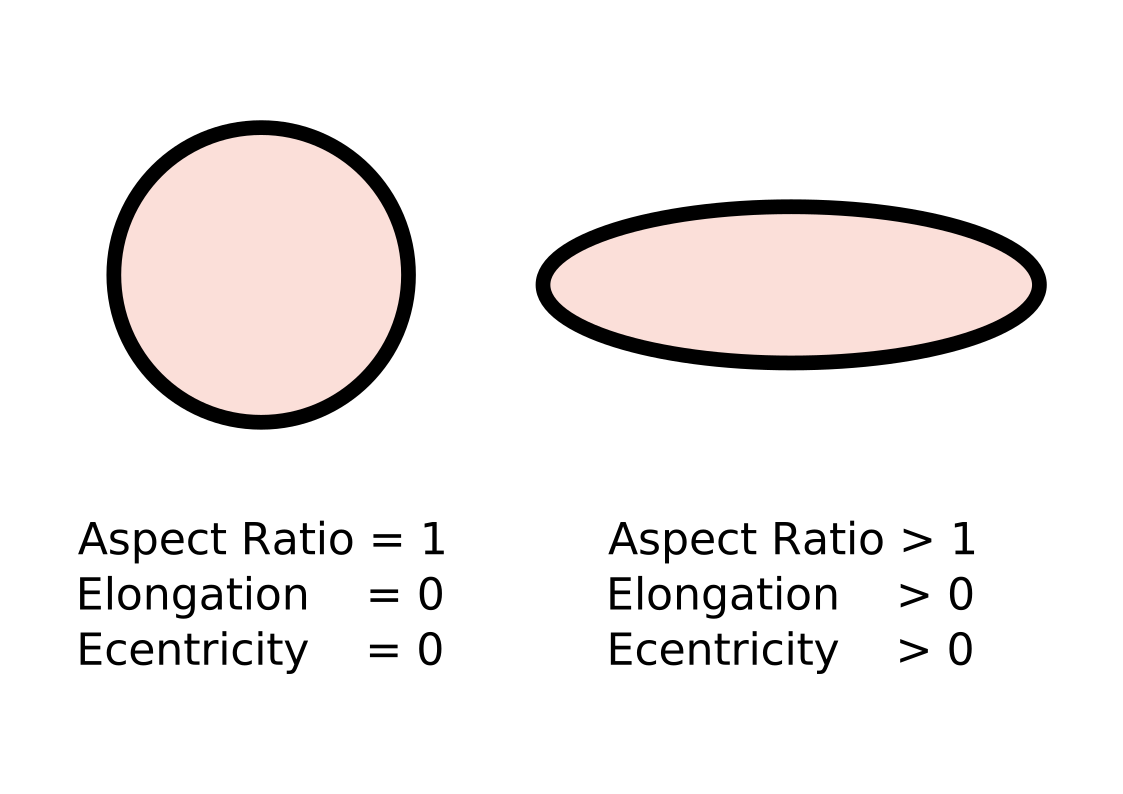
As the major axis grows relative to the minor axis, aspect ratio, elongation, and eccentricity all increase.
What it describes: How filled the cell is relative to its convex hull. A value of 1 indicates a perfectly convex shape; lower values indicate concavities or irregular boundaries.
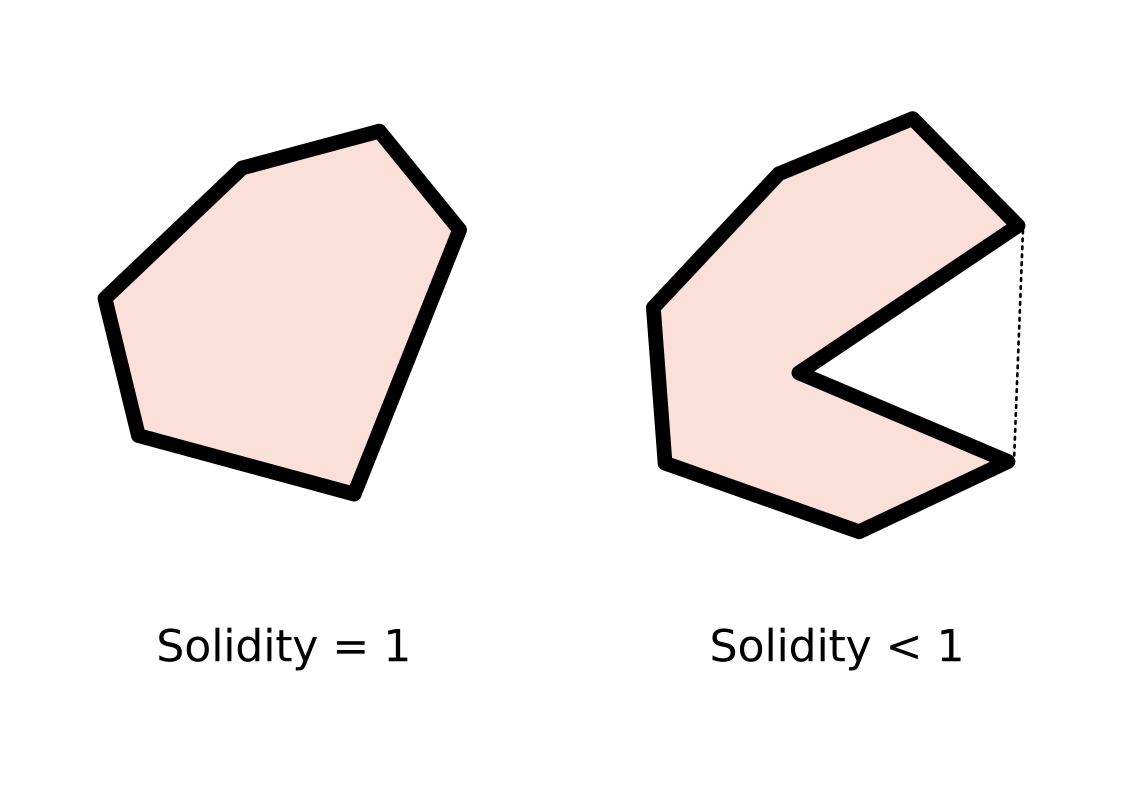
A convex shape matches its convex hull (solidity ≈ 1). Indentations or irregular boundaries reduce area relative to the hull, lowering solidity.
What it describes: The fraction of the bounding box area occupied by the cell. Values near 1 indicate the cell nearly fills its bounding box.
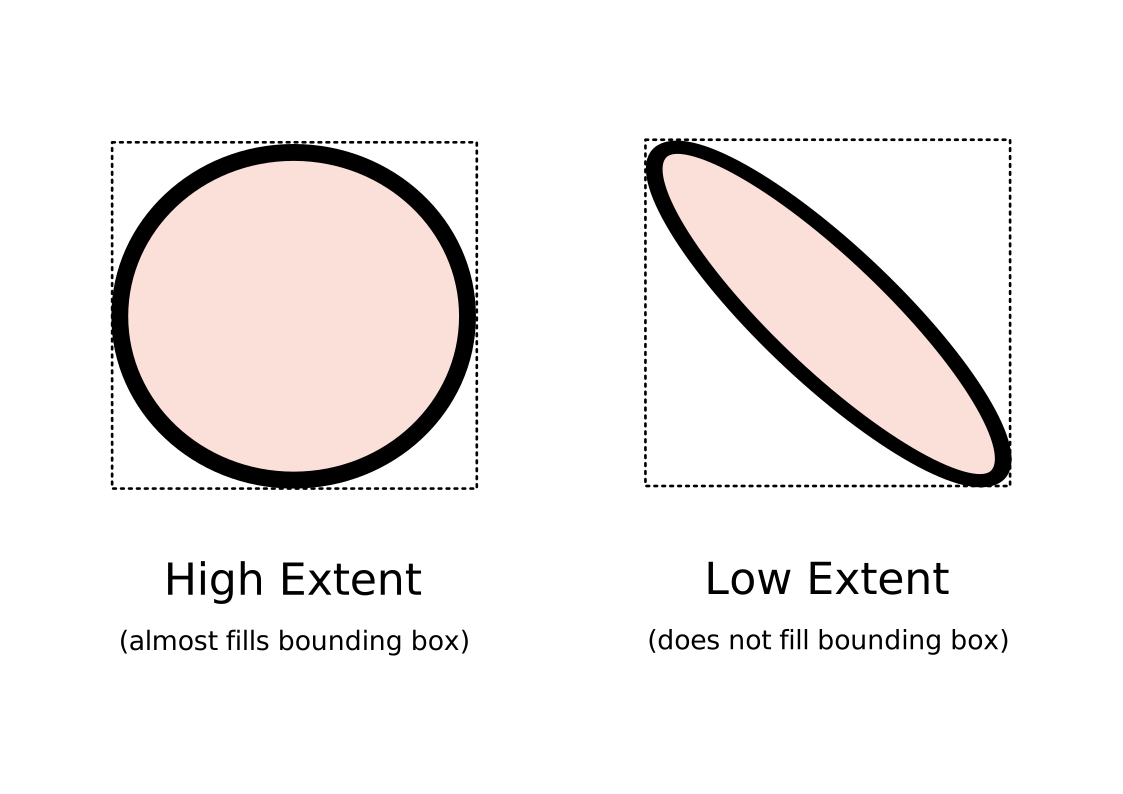
Extent measures how much of the bounding box the cell occupies. Thin or irregular cells leave more empty space in their bounding box and have lower extent values.